
In today’s competitive business landscape, standing out and being accessible to your customers is essential. Google gives you a valuable tool to achieve this through its calls and reservations features.
Google’s calls and reservations not only help customers find you more easily, but also encourage interaction and build trust in your business. When people can contact you and book effortlessly, they are more likely to choose you.
In this article, we’ll show you how to activate and optimize these options in your Google Business Profile to increase your visibility and stand out from the competition.
1. Manage your profile from Google Search
To start, sign in with your Google account and search for your business name—optionally including your city—or simply type “my business.” Then click “View profile” to manage it.
The new interface for managing your business profile directly from Google Search, called the New Merchant Experience, appears as the Merchant Panel and the Business Profile at the top of the search results, right above the organic listings.
This panel is your central hub for managing your business information. Here you’ll find:
- The main menu
- The three-dot menu
- Suggestion cards
- Your Business Profile on the right side
Keep in mind that some menu options may vary depending on your business category, so you might see different items compared to other industries.
If you see a downward arrow, click it to expand the menu and show all available options.
In many cases, the expanded menu will also show options such as “Add update” (Posts) or “Request reviews.”
2. Full control of your GBP: the menu and its advanced functions
The main menu is where you can perform all essential tasks related to your Google Business Profile:
- Edit your profile
- Add posts
- Upload photos
- Add products and services
- Respond to reviews and messages
- Configure calls and reservations
- And more
The three-dot menu on the right offers more advanced functions, such as:
- Adding or removing managers
- Viewing your Business Profile ID
- Deleting the business or marking it as temporarily or permanently closed
- Accessing additional tools
Cards are brief suggestions showing recommended actions you may want to take. These vary depending on your profile’s status.
3. How to use Google’s Reservations option
If you use an online tool to manage bookings or appointments, the “Reservations” option will be extremely helpful. It lets you add a specific URL where customers can directly schedule appointments.
If you use tools like Calendly, YouCanBookMe, SquareUp, or a Google-approved booking partner, simply click “Add a link”.
Then:
- Enter your calendar or booking URL.
- Click “Save.”
You can add multiple booking options if you want to offer customers different choices.
4. How to use Google’s Calls feature
The “Calls” feature allows you to track phone calls from customers who find you via Google Search or Google Maps, giving you a full call history.
By enabling this feature, you’ll be able to see:
- Incoming calls
- Answered calls
- Missed calls
- Whether a number belongs to a new customer
This information is especially valuable if the call reaches a sales or customer service line.
5. RAY: Your ally for attracting more customers
With RAY, a tool designed to improve your online reviews and optimize your Google presence, you can attract more customers effectively.
By properly optimizing your Google Business Profile, you improve your visibility and provide clear, updated information—directly influencing customer decision-making.
RAY helps you:
- Collect more positive reviews
- Increase trust among potential customers
- Improve your search visibility
- Make your business easier to find
- Showcase hours, menus, services, and more
Managing your Google Business Profile effectively, combined with RAY’s tools, greatly increases your chances of attracting new customers.
See how your restaurant’s website stacks up against local competitors
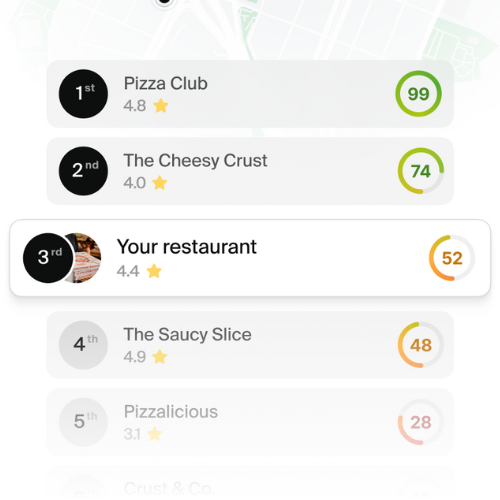
Scan your restaurant
